Importing products into a contract
Overview
You can import products into a contract from an excel spreadsheet. There are some cases where you have a price list and you want to convert it to a contract. If so, importing the products into a contract may be the fastest way to go if there are more than one hundred products in the contract. If there are less than 100 products, we recommend typing the products in manually or copying them from a quote.
You can also copy a quote to a contract. In some cases this will be a lot easier than importing an excel spreadsheet.
Procedure
- The first thing that you need to do is make sure you do NOT have any products with nothing/blank Product IDs in your product file. This will impact the result of your import as it will add those blank products in as replacement products.
- Secondly... you will need to create a CSV spreadsheet with the required data.
The headings need to be as followed in order as per below.
Product ID - This is the Product ID
Price Type - The way that contract prices are calculated for this product. (e.g. SpecificRetailInc)
Value - The effect of the value depends on the contract price type selected.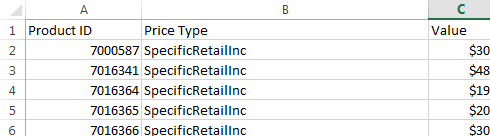
For Price Types description please refer to below.
Price Type Required Description on CSV Discount From Sell (Percentage) DiscountFromSellPercent Markup From Cost MarkupFromCost Price Level PriceLevel Specific Retail (Inc) SpecificRetailInc Discount From Sell (Value) DiscountFromSellValue Quantity Minimum (Optional) QuantityMinimumOptional Product Disabled ProductDisabled GP From Cost (Cost Price 1) GrossProfitFromCostPrice1Cost Replace Replace Specific Retail (Ex) SpecificRetailEx
GP From Cost (FIFO) GrossProfitFromFifoCost Match Competitor MatchCompetitor Quantity Minimum (Required) QuantityMinimumRequired $ Signs can not be on the value of the spreed sheet when importing
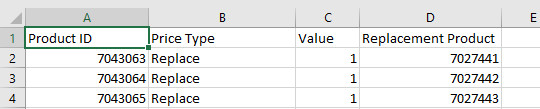
Replace Price Type
When using replace price type the below example is how the layout is meant to look
- In the navigation panel, go to Relationships then Contracts.
Click New (to create new contract). The Contract window displays.
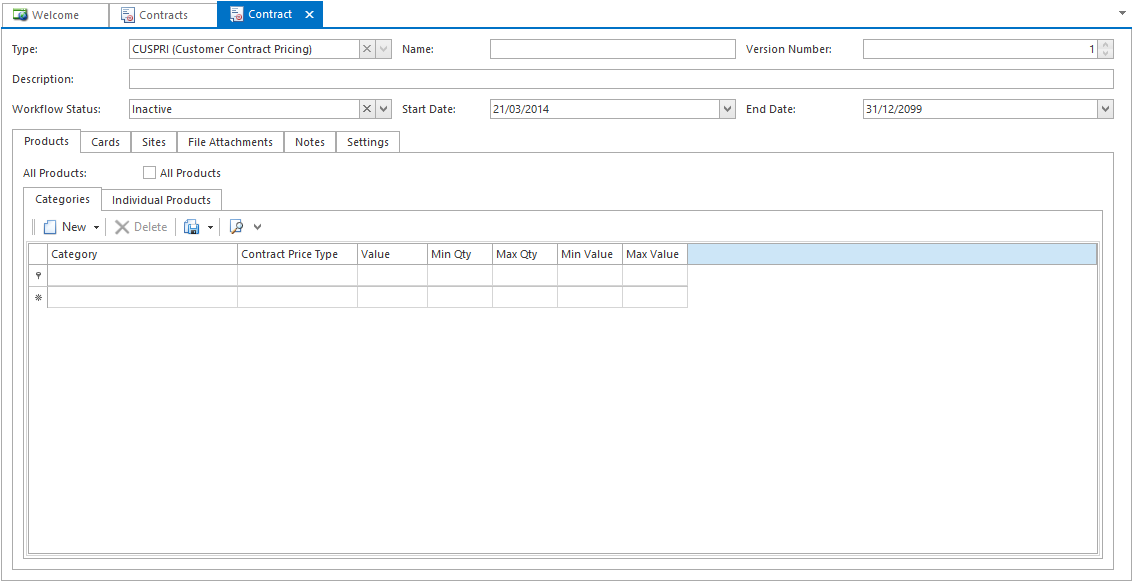
- Enter a name and a short description of the contract. The type and version number are filled in automatically by the system and cannot be changed.
- Enter the contract start and end dates.
Click on "Import Products" on the top panel.
Select the required CSV file and click open.

- On the Cards tab specify the contract to a customer or suppliers, or use the All Customers and/or All Suppliers checkboxes.
- Select a site.
The Settings tab lets you specify quantity and value restrictions on the contract.
- When you have finished entering information, set the Workflow Status field in the header to Active.
Click Save and Close to save and close the contract.
Please test by performing a sale order or sale shipment to ensure the Values are working accordingly.